
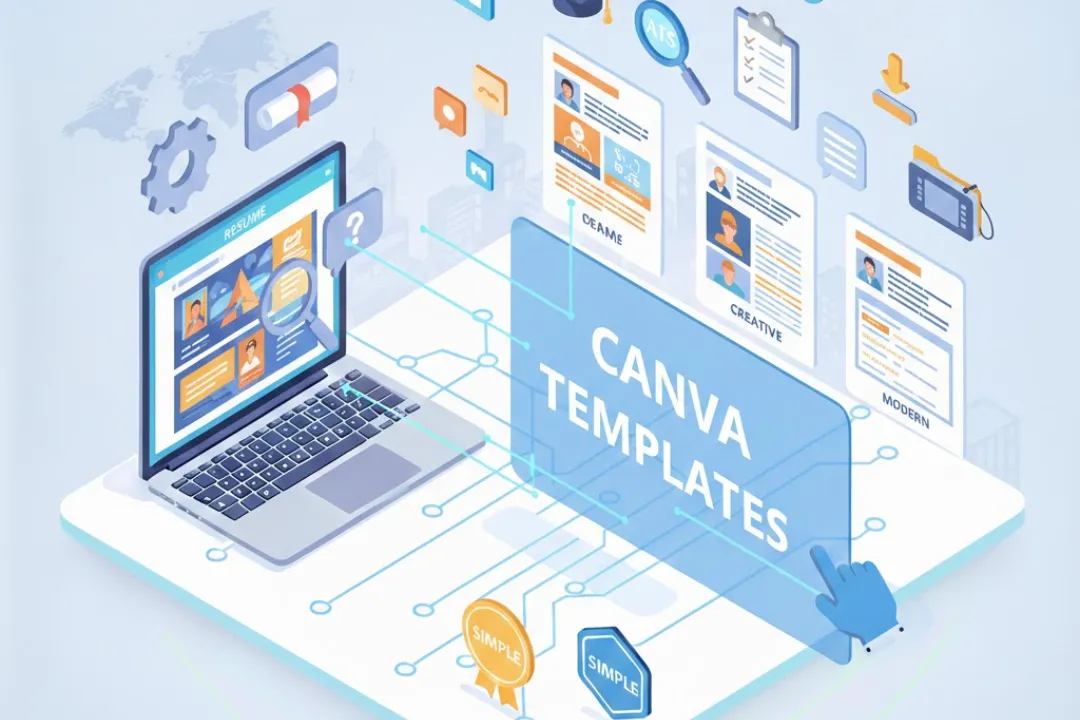
In today’s competitive job market, your resume needs to make an immediate impact. Canva resume templates offer an accessible, user-friendly solution for creating visually appealing resumes without design experience. This comprehensive guide will walk you through everything you need to know about using Canva resume templates to craft a standout application that captures recruiters’ attention.
What Are Canva Resume Templates?
Canva is a free online design platform that provides thousands of professionally designed resume templates. These templates combine aesthetic appeal with functional layouts, allowing job seekers to create polished resumes in minutes rather than hours. Unlike traditional word processors, Canva offers drag-and-drop functionality, extensive customization options, and modern designs that help your application stand out from generic formats.
The platform caters to all experience levels, from recent graduates to seasoned executives, with templates spanning various industries including creative fields, tech, healthcare, business, and education. Whether you need a minimalist design or something more colorful and creative, Canva’s library has options to match your professional brand.
Getting Started with Canva
Creating your resume on Canva begins with setting up a free account. Visit canva.com and sign up using your email address, Google account, or Facebook credentials. The free version provides access to thousands of templates and basic design elements, while Canva Pro offers additional premium templates, brand kits, and advanced features.
Once logged in, search for “resume” in the template search bar. You’ll see hundreds of options organized by style, industry, and color scheme. Browse through categories or use filters to narrow your search based on your preferences and professional field.
Choosing the Right Template
Selecting an appropriate template is crucial for making the right first impression. Consider your industry standards when browsing options. Creative fields like graphic design, marketing, or photography welcome more colorful, innovative designs, while conservative industries such as law, finance, or government typically expect traditional, minimalist formats.
Examine the template’s structure carefully. Does it allocate appropriate space for your experience level? Entry-level candidates need templates emphasizing education and skills, while experienced professionals require more room for work history and accomplishments. Ensure the layout highlights your strongest qualifications prominently.
Pay attention to readability. Even the most beautiful template fails if recruiters struggle to find key information. Choose designs with clear section headers, adequate white space, and legible fonts. Remember that many companies use applicant tracking systems that may have difficulty parsing overly complex designs.
Customizing Your Canva Resume
After selecting your template, the real work begins. Click on any text element to edit it with your information. Replace placeholder text with your name, contact details, professional summary, work experience, education, and skills. Canva’s interface makes this process intuitive—simply click and type.
Adjust fonts to match your personal brand while maintaining professionalism. Canva offers hundreds of font choices, but limit yourself to two or three complementary fonts throughout your resume. Typically, use one font for headers and another for body text. Avoid overly decorative fonts that compromise readability.
Modify colors to align with your industry and personal style. While Canva templates come with preset color schemes, you can customize every element. Conservative industries call for neutral tones like navy, gray, or black, while creative fields allow bolder choices. Ensure sufficient contrast between text and background for easy reading.
Resize and rearrange elements by clicking and dragging. If you need more space for work experience, expand that section and reduce others. Canva’s flexibility allows you to maintain the template’s overall aesthetic while tailoring the layout to your specific needs.
Adding Your Professional Content
Your resume content matters more than design. Start with a compelling professional summary that captures your expertise in three to four sentences. Highlight your most relevant skills, years of experience, and unique value proposition.
In the work experience section, list positions in reverse chronological order. For each role, include the company name, location, job title, and employment dates. Use bullet points to describe your responsibilities and achievements, starting each point with strong action verbs. Quantify accomplishments whenever possible—numbers provide concrete evidence of your impact.
The education section should include your degree, institution, graduation date, and relevant coursework or honors. Recent graduates can expand this section, while experienced professionals might condense it to make room for professional achievements.
Create a skills section highlighting both technical and soft skills relevant to your target position. Organize skills logically, grouping related competencies together. Include industry-specific software, methodologies, languages, or certifications that strengthen your candidacy.
Incorporating Visual Elements
Canva’s strength lies in its visual capabilities. Enhance your resume with professional elements that support rather than distract from your content. Add icons to section headers for visual interest and improved scannability. Canva’s library includes thousands of free icons representing various industries and concepts.
Consider incorporating a professional headshot if appropriate for your industry. Creative fields and client-facing roles often welcome photos, while traditional sectors may not. Ensure any photo you use is professional, recent, and properly sized within the template.
Use graphs or charts to visualize skills proficiency levels, but exercise restraint. These elements work best for technical skills where you can honestly represent your expertise level. Avoid subjective ratings that may appear presumptuous or inaccurate.
Optimizing for Applicant Tracking Systems
Many companies use applicant tracking systems to screen resumes before human review. While Canva templates are visually appealing, some design elements can confuse these systems. To optimize your Canva resume for ATS compatibility, avoid placing text in images or text boxes when possible, as these may not be readable by scanning software.
Stick to standard section headers like “Work Experience,” “Education,” and “Skills” rather than creative alternatives. ATS software searches for these common terms when categorizing information. Use standard fonts available across platforms to ensure proper rendering.
Before submitting, test your resume by saving it as a PDF and reopening it to verify all formatting remains intact. While PDF is generally preferred for maintaining design integrity, some companies specifically request Word documents. Canva allows downloads in multiple formats to accommodate different requirements.
Finalizing and Downloading Your Resume
After completing your design, thoroughly proofread every section. Check for spelling errors, grammatical mistakes, and formatting inconsistencies. Read your resume aloud to catch awkward phrasing or unclear statements. Consider asking a trusted friend or mentor to review it for feedback.
When satisfied with your resume, download it by clicking the download button. Canva offers various file formats including PDF, PNG, and JPEG. PDF is typically the best choice as it preserves formatting across different devices and operating systems while remaining professional and easily shareable.
Save your resume with a clear, professional filename including your name, such as “John_Smith_Resume.pdf.” This helps recruiters organize applications and ensures your file is easily identifiable.
Conclusion
Canva resume templates democratize professional design, empowering anyone to create visually compelling resumes without specialized skills. By choosing appropriate templates, customizing thoughtfully, and balancing aesthetics with ATS optimization, you can craft resumes that capture attention and communicate your qualifications effectively. Remember that design enhances but never replaces strong content—let your accomplishments shine through polished presentation.